The Flutter SDK wraps the Atomic iOS and Android SDKs, allowing you to use them in your Flutter apps.
The Flutter SDK supports iOS 12 and above, and Android 5.0 and above.
Atomic Flutter SDK is null-safe.
Dart SDK 2.17.0+ is required.
The current stable release is 23.4.0.
You can use our Flutter boilerplate app to help you get started with the Atomic SDK using Flutter. You can download it from its GitHub repository. Alternatively, you can follow this guide.
The Flutter SDK is hosted in a private repository on Github. To gain access to this private repository, send your Github user name to your Atomic representative.
In order to have access, you will require to set public keys. The external guide Using a private git repo as a dependency in Flutter details steps required.
Once you have access, add the Git repository to your pubspec.yaml file and run flutter pub get:
dependencies:
  atomic_sdk_flutter:
    git:
      url: [email protected]:atomic-app/atomic-sdk-flutter-releases.git
      ref: 23.4.0
The ref property should be set to the version number of the Flutter SDK that you wish to use. A list of version numbers is documented in our changelog.
:::info Minimal Dart SDK Atomic Flutter SDK requires the Dart SDK to be 2.17.0 or above. So your pubspec.yaml file needs the following constraints:
environment:
  sdk: '>=2.17.0 <3.0.0'
:::
You also need to make the following changes for each platform:
iOS
- Open the
Podfilein your app'siossubdirectory, and add the following lines underneath theplatformdeclaration:
source 'https://github.com/atomic-app/action-cards-ios-sdk-specs.git'
source 'https://github.com/CocoaPods/Specs.git'- At the end of the file, add the following line:
pod 'AtomicSDK', :git => 'https://github.com/atomic-app/action-cards-ios-sdk-releases', :tag => "23.4.0"- In the same directory, run
pod installto fetch the Atomic SDK dependency. If you are unable to run this command, check that you have Cocoapods installed.
Android
- Add the Atomic Android SDK repository to your build configuration. Open
android/build.gradleand add the following underallprojects→repositories.
maven {
  url  "https://downloads.atomic.io/android-sdk/maven"
}-
Bump your minimum SDK version. In your
android/app/build.gradlefile, change the value ofminSdkVersionto21if the current value is less than this. -
Add the Material dependency to your app. Add the following to the
dependenciesblock in yourandroid/app/build.gradlefile:
implementation 'com.google.android.material:material:1.2.1'Change the parent attribute for NormalTheme and LaunchTheme to Theme.MaterialComponents.Light.NoActionBar in the following files:
android/app/src/main/res/values/styles.xmlandroid/app/src/main/res/values-night/styles.xml
<style name="LaunchTheme" parent="Theme.MaterialComponents.Light.NoActionBar">
    ...
</style>

<style name="NormalTheme" parent="Theme.MaterialComponents.Light.NoActionBar">
    ...
</style>- Open your
MainActivityclass inside your app project, and change the base class fromFlutterActivitytoAACFlutterActivity:
import io.atomic.atomic_sdk_flutter.AACFlutterActivity

class MainActivity: AACFlutterActivity() {
  ...
}- Open
android/app/src/main/AndroidManifest.xmland add the following attribute to theapplicationtag:
<application ... android:supportsRtl="true">...</application>This is required as a temporary workaround to support snooze and feedback screen layouts, and will be resolved in a future SDK release.
Before you can display an Atomic stream container or single card view in your app, you must configure the SDK.
You can find your API base URL in the Atomic Workbench, under Configuration > SDK > API Host.
The SDK API base URL is different to the API base URL endpoint, which is also available under Configuration. The SDK API base URL ends with client-api.atomic.io.
You also need to provide the SDK a session delegate for resolving authentications.
You can set your API base URL in code, by calling the setApiBaseUrl method:
import 'package:atomic_sdk_flutter/atomic_session.dart';

await AACSession.setApiBaseUrl('<url>');Within your host app, you will need to call the initialise method to configure the SDK. Your environment ID can be found in the Atomic Workbench, under Configuration, and your API key can be configured under Configuration > SDK > API Keys.
import 'package:atomic_sdk_flutter/atomic_session.dart';

await AACSession.initialise('<environmentId>', '<apiKey>');Atomic SDK uses a JSON Web Token (JWT) to perform authentications.
The SDK Authentication guide provides step-by-step instructions on how to generate a JWT and add a public key to the Workbench.
Within your host app, you will need to call AACSession.setSessionDelegate to provide an object extending an abstract class AACSessionDelegate, which contains only one method Future<String> authToken.
It is expected that the token returned by this method represents the same user until you call the logout method.
import 'package:atomic_sdk_flutter/atomic_stream_container.dart';

class YourSessionDelegate extends AACSessionDelegate {

  @override
  Future<String> authToken() async {
    <return the token>
  }
}import 'package:atomic_sdk_flutter/atomic_session.dart';
await AACSession.setSessionDelegate(YourSessionDelegate());The Atomic SDK allows you to configure the time interval to determine whether the JSON Web Token (JWT) has expired. If the interval between the current time and the token's exp field is smaller than the seconds you set, the token is considered to be expired.
The interval must not be smaller than zero.
If this method is not called, the default expiry interval is 60 seconds.
import 'package:atomic_sdk_flutter/atomic_session.dart';

await AACSession.setTokenExpiryInterval(120);The Atomic SDK allows you to configure the timeout interval (in seconds) between retries to get a JSON Web Token from the session delegate if it returns a null token. The SDK will not request a new token for this amount of seconds from your supplied session delegate. The default value is 0, which means it will immediately retry your session delegate for a new token.
import 'package:atomic_sdk_flutter/atomic_session.dart';

await AACSession.setTokenRetryInterval(10);Atomic SDK uses WebSocket as the default protocol and HTTP as a backup. However, you can switch to HTTP by using AACSession.setApiProtocol, which accepts a parameter of type AACApiProtocol. You can call this method at any time and it will take effect immediately. The setting will last until the host app restarts.
The AACApiProtocol enum has two values:
webSockets: Represent the WebSockets protocol.http: Represent the HTTP protocol.
import 'package:atomic_sdk_flutter/atomic_session.dart';

await AACSession.setApiProtocol(AACApiProtocol.http);Flutter provides a FlutterError.onError error handler allowing the app deal with errors in one place. Atomic SDK redirects the errors/exceptions to this pipeline as well. Simply set the handler in your host app. By default, this calls FlutterError.presentError, which dumps the error to the device logs. For more details on Flutter error handling, see (Flutter documentation)[https://docs.flutter.dev/testing/errors].
FlutterError.onError = (details) {
  // You handle errors here.
};This section applies to the stream container and single card view.
To display an Atomic stream container in your app, create an instance of AACStreamContainer. To create an instance, you supply:
- (required) A stream container ID, which uniquely identifies the stream container in the app;
- (required) A configuration object, which provides initial styling and presentation information to the SDK for this stream container.
- (optional) Other parameters that support a variety of functionalities.
First, you’ll need to locate your stream container ID.
Navigate to the Workbench, select Configuration > SDK > Stream containers and find the ID next to the stream container you are integrating.
The configuration object is a class of AACStreamContainerConfiguration, which allows you to configure a stream container or single card view via the following properties:
presentationStyle: indicates how the stream container is being displayed:- With no button in its top left;
- With an action button that triggers a custom action you handle. This value has no effect in horizontal container view;
- With a contextual button, which displays
Closefor modal presentations, orBackwhen inside a navigation controller. This value has no effect in horizontal container view.
launchColors: customizable colors for first time launch, before a theme has been loaded.background: The background color to use for the launch screen, seen on the first load. Defaults to white.text: The text color to use for the view displayed when the SDK is first presented. Defaults to black at 50% opacity.loadingIndicator: (iOS only) The color to use for the loading spinner on the first time loading screen. Defaults to black.button: The color of the buttons that allow the user to retry the first load if the request fails. Defaults to black.statusBarBackground: (Android only) The background color to use for the status bar on secondary screens, such as the snooze selection screen.
interfaceStyle: (iOS only) The interface style (light, dark or automatic) to apply to the stream container.enabledUiElements: A bitmask of UI elements that should be enabled in the stream container. Defaults to showing toast messages and the card list header in a stream container, and has no effect in single card view. Possible values are:none: No UI elements should be displayed. Do not use it in conjunction with any other values.cardListToast: Toast messages should appear at the bottom of the card list. Toast messages appear when cards are submitted, dismissed or snoozed, or when an error occurs in any of these actions.cardListFooterMessage: A footer message should be displayed below the last card in the card list, if at least one is present. The message is customized using theAACCustomStringCardListFooterMessagecustom string. This value has no effect in horizontal container view and single card view.cardListHeader: The header should display at the top of the card list, allowing the user to pull down from the top of the screen to refresh the card list.defaultValue: A combination ofcardListToastandcardListHeader. Toast messages and the card list header should be shown.
pollingInterval: How frequently the card list should be automatically refreshed. Defaults to 15 seconds, and must be at least 1 second. If set to 0, the card list will not automatically refresh after the initial load.pollingIntervalonly applies to HTTP polling and has no effect when WebSockets is on.
:::info Battery life
Setting the card refresh interval to a value less than 15 seconds may negatively impact device battery life and is not recommended.
:::
runtimeVariableResolutionTimeout: The maximum amount of time, in seconds, allocated to the resolution of runtime variables in yourruntimeVariableDelegate'srequestRuntimeVariablesmethod. If you do not return the processed card list before the timeout is reached, the default values for all runtime variables will be used. If you do not implement this delegate method, this property is not used. Defaults to 5 seconds.votingOption(AACVotingOption): Sets the card voting options available from a card's overflow menu.both: The user can flag a card as either useful or not useful.notUseful: The user can flag a card as 'not useful' only.useful: The user can flag a card as 'useful' only.none: The user cannot vote on a card (default).
The configuration object also allows you to specify custom strings for features in the SDK, using the setValueForCustomString method, which accepts an enumeration AACCustomString and a string value.
The enumeration AACCustomString has such values:
cardListTitle: The title for the card list in this stream container - defaults to "Cards".cardSnoozeTitle: The title for the feature allowing a user to snooze a card - defaults to "Remind me".awaitingFirstCard: The message displayed over the card list, when the user has never received a card before - defaults to "Cards will appear here when there’s something to action."allCardsCompleted: The message displayed when the user has received at least one card before, and there are no cards to show - defaults to "All caught up".votingUseful: The title to display for the action a user taps when they flag a card as useful - defaults to "This is useful".votingNotUseful: The title to display for the action a user taps when they flag a card as not useful - defaults to "This isn't useful".votingFeedbackTitle: The title to display at the top of the screen allowing a user to provide feedback on why they didn't find a card useful - defaults to "Send feedback".cardListFooterMessage: The message to display below the last card in the card list, provided there is at least one present. Does not apply in horizontal container and single card view, and requiresenabledUiElementsto containAACUIElementCardListFooterMessage. Defaults to an empty string.noInternetConnectionMessage: The error message shown when the user does not have an internet connection. Defaults to "No internet connection".dataLoadFailedMessage: The error message shown when the theme or card list cannot be loaded due to an API error. Defaults to "Couldn't load data".tryAgainTitle: The title of the button allowing the user to retry the failed request for the card list or theme. Defaults to "Try again".toastCardDismissedMessage: Customised toast message for when the user dismisses a card. Defaults to "Card dismissed".toastCardCompletedMessage: Customised toast message for when the user completes a card. Defaults to "Card completed".toastCardSnoozeMessage: Customised toast messages for when the user snoozes a card. Defaults to "Snoozed until X" where X is the time the user dismissed the card until.toastCardFeedbackMessage: Customised toast message for when the user sends feedback (votes) for a card. Defaults to "Feedback received".
You can also provide other optional parameters when you create a stream container or a single card view:
actionDelegate: An optional delegate that handles actions triggered inside the stream container, such as the tap of the custom action button in the top left of the stream container, or submit and link buttons with custom actions.eventDelegate: An optional delegate that responds to card events in the stream container.runtimeVariableDelegate: An optional runtime variable delegate that resolves runtime variable for the cards.onViewLoaded: An optional call back that allows post-loading actions, such as applying stream container filters.
You can now create a stream container by supplying the stream container ID and configuration object on instantiation:
import 'package:atomic_sdk_flutter/atomic_stream_container.dart';

Container(
  child: AACStreamContainer(
    configuration: <config>,
    containerId: '<containerId>',
    // Optional parameters
    runtimeVariableDelegate: <runtime variable delegate>,
    actionDelegate: <action delegate>,
    eventDelegate: sdkDelegate,
    onViewLoaded: (state) {
      print('Container loaded');
    },
  ),
  // Specify desired width and height.
  width: 400,
  height: 400
});The Atomic iOS SDK also supports rendering a single card in your host app.
To create an instance of AACSingleCardView that is configured in the same way as a stream container, you supply the following parameters on instantiation:
- The ID of the stream container to render in the single card view. The single card view renders only the first card that appears in that stream container;
- A configuration object, which provides initial styling and presentation information to the SDK for the single card view.
The single card view configuration AACSingleCardConfiguration is a subclass of the configuration for a stream container, which inherits most of its options. The only configuration option that does not apply is presentationStyle, as the single card view does not display a header, and therefore does not show a button in its top left.
import 'package:atomic_sdk_flutter/atomic_stream_container.dart';

AACSingleCardView(
  configuration: config,
  containerId: '<containerId>',
  // Optional parameters
  runtimeVariableDelegate: <runtime variable delegate>,
  actionDelegate: <action delegate>,
  eventDelegate: sdkDelegate,
  onViewLoaded: (state) {
    print('Container loaded');
  },
  onSizeChanged: onSizeChanged // Optional - triggered when the single card view changes size.
);
Within a single card view, toast messages - such as those seen when submitting, dismissing or snoozing a card in a stream container - do not appear. Pull to refresh functionality is also disabled.
The single card view automatically sizes itself to fit the card it is displaying. You can also be notified when the single card view changes size, by assigning a callback to the onSizeChanged property on the single card view. You will be supplied with the width and height of the single card view as arguments.
There is an extra option in AACSingleCardConfiguration:
automaticallyLoadNextCard: When enabled, will automatically display the next card in the single card view if there is one, using a locally cached card list. Defaults tofalse.
Stream containers and single card views are dismissed of like other views or controllers. There is no specific method that needs be to called.
When a stream container with a given ID is launched for the first time on a user's device, the SDK loads the theme and caches it for future use. On subsequent launches of the same stream container, the cached theme is used and the theme is updated in the background, for the next launch. Note that this first-time loading screen is not presented in single card view and horizontal container view - if those views fail to load, they collapse to a height of 0.
The SDK supports some basic properties to style the first-time load screen, which displays a loading spinner in the center of the container. If the theme or card list fails to load for the first time, an error message is displayed with a 'Try again' button. One of two error messages is possible - 'Couldn't load data' or 'No internet connection'.
First-time loading screen colors are customized using the following properties on AACStreamContainer:
launchColors: customizable colors for first time launch, before a theme has been loaded.background: The background color to use for the launch screen, seen on the first load. Defaults to white.text: The text color to use for the view displayed when the SDK is first presented. Defaults to black at 50% opacity.loadingIndicator: (iOS only) The color to use for the loading spinner on the first time loading screen. Defaults to black.button: The color of the buttons that allow the user to retry the first load if the request fails. Defaults to black.statusBarBackground: (Android only) The background color to use for the status bar on secondary screens, such as the snooze selection screen.
You can also customize the text for the first load screen error messages and the 'Try again' button, using the setValueForCustomString method of AACStreamContainerConfiguration.
Note: These customized error messages also apply to the card list screen.
AACCustomString.noInternetConnectionMessage: The error message shown when the user does not have an internet connection. Defaults to "No internet connection".AACCustomString.dataLoadFailedMessage: The error message shown when the theme or card list cannot be loaded due to an API error. Defaults to "Couldn't load data".AACCustomString.tryAgainTitle: The title of the button allowing the user to retry the failed request for the card list or theme. Defaults to "Try again".
(introduced in 23.4.0)
In version 23.4.0, we've introduced a new feature for observing stream containers with pure SDK API, even when that container's UI is not loaded into memory.
When you opt to observe a stream container, it is updated by default immediately after any changes in the published cards. Should the WebSocket be unavailable, the cards are updated at regular intervals, which you can specify. Upon any change in cards, the handler block is executed with the updated card list or null if the cards couldn't be fetched. Note that the specified time interval for updates cannot be less than 1 second.
The following code snippet shows the simplest use case scenario:
await AACSession.observeStreamContainer(
  containerId: streamContainerId,
  callback: (cards) {
    if (cards == null) {
      print("The cards could not be loaded.");
    }
    else {
      print("There are ${cards.length} cards in the container.")
    }
  },
);
This method returns a token that you can use to stop the observation, see Stopping the observation for more details.
:::info Card instance class clusters
In the callback, the cards parameter is an array of AACCard objects. Each AACCard contains a variety of other class types that represent the card elements defined in Workbench. Detailed documentation for the classes involved in constructing an AACCard object is not included in this guide. However, you can refer to the examples provided below, which demonstrate several typical use cases.
:::
The method accepts an optional configuration parameter. The configuration object, AACStreamContainerObserverConfiguration, allows you to customize the observer's behavior with the following properties, which are all optional:
- pollingInterval: defines how frequently the system checks for updates when the WebSocket service is unavailable. The default interval is 15 seconds, but it must be at least 1 second. If a value less than 1 second is specified, it defaults to 1 second.
- filters: filters applied when fetching cards for the stream container. It defaults to
null, meaning no filters are applied. See Filtering cards for more details of stream filtering. :::info Filters The legacy filterAACCardFilter.byCardInstanceIdforobserveStreamContaineronly works on iOS, not Android. ::: - runtimeVariables: A map of runtime variables which will be resolved before observing the stream container. Defaults to
null. See Runtime variables for more details of runtime variables. - runtimeVariableResolutionTimeout: the maximum time allocated for resolving variables in the delegate. If the tasks within the delegate method exceed this timeout, or if the completionHandler is not called within this timeframe, default values will be used for all runtime variables. The default timeout is 5 seconds and it cannot be negative.
- runtimeVariableAnalytics: whether the
runtime-vars-updatedanalytics event, which includes the resolved values of each runtime variable, should be sent upon resolution. The default setting isfalse. If you set this flag totrue, ensure that the resolved values of your runtime variables do not contain sensitive information that shouldn't appear in analytics. See SDK analytics for more details on runtime variable analytics.
The observer ceases to function when you call AACSession.logout(). Alternatively, you can stop the observation using the token returned from the observation call mentioned above:
// Start observing and save the observer's token.
final token = await AACSession.observeStreamContainer(
  containerId: streamContainerId,
  callback: (_) {
    print("observeStreamContainer test");
  },
);

// Stop the observer using the previously saved token.
AACSession.stopObservingStreamContainer(token);Card metadata encompasses data that, while not part of the card's content, are still critical pieces of information. Key metadata elements include:
- Card instance ID: This is the unique identifier assigned to a card upon its publication.
- Card priority: Defined in the Workbench, this determines the card's position within the feed. The priority will be an integer between 1 & 10, a priority of 1 indicates the highest priority, placing the card at the top of the feed.
- Action flags: Also defined in the Workbench, these flags dictate the visibility of options such as dismissing, snoozing, and voting menus for the card.
The code snippet below shows how to access these metadata elements for a card instance.
import 'package:atomic_sdk_flutter/atomic_session.dart';

AACSession.observeStreamContainer(
  containerId: "1",
  callback: (cards) {
    final card = cards?.first;
    print("The card instance ID is ${card?.id}");
    print("The priority of the card is ${card?.metaData.priority}");
    print("The card has dismiss overflow menu: ${card!.actions.dismiss.overflow ? "yes" : "no"}.");
  },
);Elements refer to the contents that are defined in the Workbench on the Content page of a card. All elements that are at the same hierarchical level within a card are encapsulated in an AACLayoutNode object. Elements at the top level are accessible through the defaultView property of the AACCard. The nodes property within defaultView contains them.
The code snippet below shows how to traverse through all the elements in a card and extract the text representing the card's category.
await AACSession.observeStreamContainer(
  containerId: "1",
  callback: (cards) {
    final card = cards?.first;
    if (card != null) {
      for (final node in card.defaultView.nodes) {
        if (node.type == "cardDescription") {
          final categoryText = node.attributes["text"];
          print("The card's category node's text is: $categoryText");
        }
      }
    }
  },
);
The AACLayoutNode class can represent properties for the various elements you can create in Workbench. Detailed documentation for all these properties is not provided, but they correspond to the raw card JSON viewable in the workbench.
Subviews are layouts that differ from the defaultView and each has a unique subview ID. See Link to subview on how to get the subview ID.
The following code snippet shows how to retrieve a subview layout using a specific subview ID.
await AACSession.observeStreamContainer(
  containerId: "1",
  callback: (cards) {
    final card = cards?.first;
    final subview = card?.subviews["subviewID"];
    print("Accessing subview ${subview?.title}");
  },
);
:::info Accessing a card's subviews in iOS The AACCard's subviews are not yet available for iOS in this version of the Flutter SDK. Subviews will be added in a future Flutter release.
The nodeColumns method below is an example that uses recursion to show data from a List of AACLayoutNodes, as well as their children (and their children's children, etc.). The data is displayed with nested Column and Text widgets.
import 'package:atomic_sdk_flutter/atomic_data_interface.dart';
import 'package:collection/collection.dart';
import 'package:flutter/material.dart';

List<Column> nodeColumns(List<AACLayoutNode> nodes) {
  return nodes
      .mapIndexed(
        (index, node) => Column(
          children: [
            Text(
              "Node #${index + 1}",
              style: const TextStyle(fontWeight: FontWeight.bold),
            ),
            Text("Type: ${node.type}"),
            Text("Attributes: ${node.attributes}"),
            Text("Validations: ${node.validations}"),
            const Text(
              "Children:",
              style: TextStyle(fontWeight: FontWeight.bold),
            ),
            Column(
              children: nodeColumns(node.children)
            ),
          ],
        ),
      )
      .toList();
}(introduced in 23.4.0)
In version 23.4.0, we've introduced a new feature that execute card actions through pure SDK API. The currently supported actions are: dismiss, submit, and snooze. To execute these card actions, follow these three steps:
- Create a card action object: Use the corresponding initialization methods of the
AACCardActionclass. You'll need a container id and a card instance ID for this. The card instance ID can be obtained from an [AACCard] fromAACSession.observeStreamContainer(see API-driven card containers for more details). - Execute the action: Call the method
AACSDK.executeCardActionto perform the card action. - Check the result of the action in the result callback: The result will be an
AACCardActionResultenum.
The following code snippet shows how to dismiss a card.
AACSession.executeCardAction(
  containerId,
  cardId,
  AACCardAction.dismiss(),
  (result) {
    switch (result) {
      case AACCardActionResult.Success:
        print("Card $cardId dismissed!");
        break;
      case AACCardActionResult.DataError:
        print("Card $cardId DataError!");
        break;
      case AACCardActionResult.NetworkError:
        print("Card $cardId NetworkError!");
        break;
    }
  },
);You have the option to submit certain values along with a card. These values are optional and should be encapsulated in an Map<String, dynamic> object, using String keys and values that are either Strings, numbers, or bools.
:::info Input Components
While editing cards in Workbench, you can add input components onto cards and apply various validation rules, such as Required, Minimum length, or Maximum length. The input elements can be used to submit user-input values, where the validation rules are applied when submitting cards through UIs of stream containers.
However, for this non-UI version, support for input components is not available yet. There is currently no mechanism to store values in these input components through this API, and the specified validation rules won't be enforced when submitting cards.
:::
The following code snippet shows how to submit a card with specific values.
const submittedValues = <String, Object>{
  "stringKey": "string",
  "numberKey": 22,
  "booleanKey": false,
};
AACSession.executeCardAction(
  containerId,
  cardId,
  AACCardAction.submit(submittedValues),
  (result) {
    switch (result) {
      case AACCardActionResult.Success:
        print("Card $cardId submitted with values!");
        break;
      case AACCardActionResult.DataError:
        print("Card $cardId DataError!");
        break;
      case AACCardActionResult.NetworkError:
        print("Card $cardId NetworkError!");
        break;
    }
  },
);When snoozing a card, you must specify a non-negative interval in seconds. Otherwise an error will be returned.
The following code snippet shows how to snooze a card for a duration of 1 minute.
const snoozeInterval = 60;
AACSession.executeCardAction(
  containerId,
  cardId,
  AACCardAction.snooze(snoozeInterval),
  (result) {
    switch (result) {
      case AACCardActionResult.Success:
        print("Card $cardId snoozed for $snoozeInterval seconds!");
        break;
      case AACCardActionResult.DataError:
        print("Card $cardId DataError!");
        break;
      case AACCardActionResult.NetworkError:
        print("Card $cardId NetworkError!");
        break;
    }
  },
);Stream containers in the Atomic Flutter SDK support dark mode. You configure an (optional) dark theme for your stream container in the Atomic Workbench.
The interface style determines which theme is rendered:
automatic: If the user's device is currently set to light mode, the stream container will use the light (default) theme. If the user's device is currently set to dark mode, the stream container will use the dark theme (or fallback to the light theme if this has not been configured). On iOS versions less than 13, this setting is equivalent tolight.light: The stream container will always render in light mode, regardless of the device setting.dark: The stream container will always render in dark mode, regardless of the device setting.
Stream containers (vertical or horizontal), single card views and container card count observers can have one or more filters applied. These filters determine which cards are displayed, or how many cards are counted.
A stream container filter consists of two parts: a filter value and an operator.
The filter value is used to filter cards in a stream container. The following list outlines all card attributes that can be used as a filter value.
| Card attribute | Description | Value type |
|---|---|---|
| Priority | Card priority defined in Workbench, Card -> Delivery | int |
| Card template created date | The date time when a card template is created | DateTime |
| Card template ID | The template ID of a card, see below for how to get it | String |
| Card template name | The template name of a card | String |
| Custom variable | The variables defined for a card in Workbench, Card -> Variables | Multiple |
Use corresponding static methods of AACCardFilterValue to create a filter value.
The following code snippet shows how to create a filter value that represents a card priority 4.
final filterValue = AACCardFilterValue.byPriority(4);The following code snippet shows how to create a filter value that represents a boolean custom variable isSpecial.
final filterValue = AACCardFilterValue.byVariableNameBool("isSpecial", false);Note: It's important to specify the right value type when referencing custom variables for filter value. There are five types of variables in the Workbench, currently four are supported:
- String:
AACCardFilterValue.byVariableNameString(String variableName, String value) - Number:
AACCardFilterValue.byVariableNameInt(String variableName, int value) - Date:
AACCardFilterValue.byVariableNameDateTime(String variableName, DateTime valuel) - Boolean:
AACCardFilterValue.byVariableNameBool(String variableName, bool value)
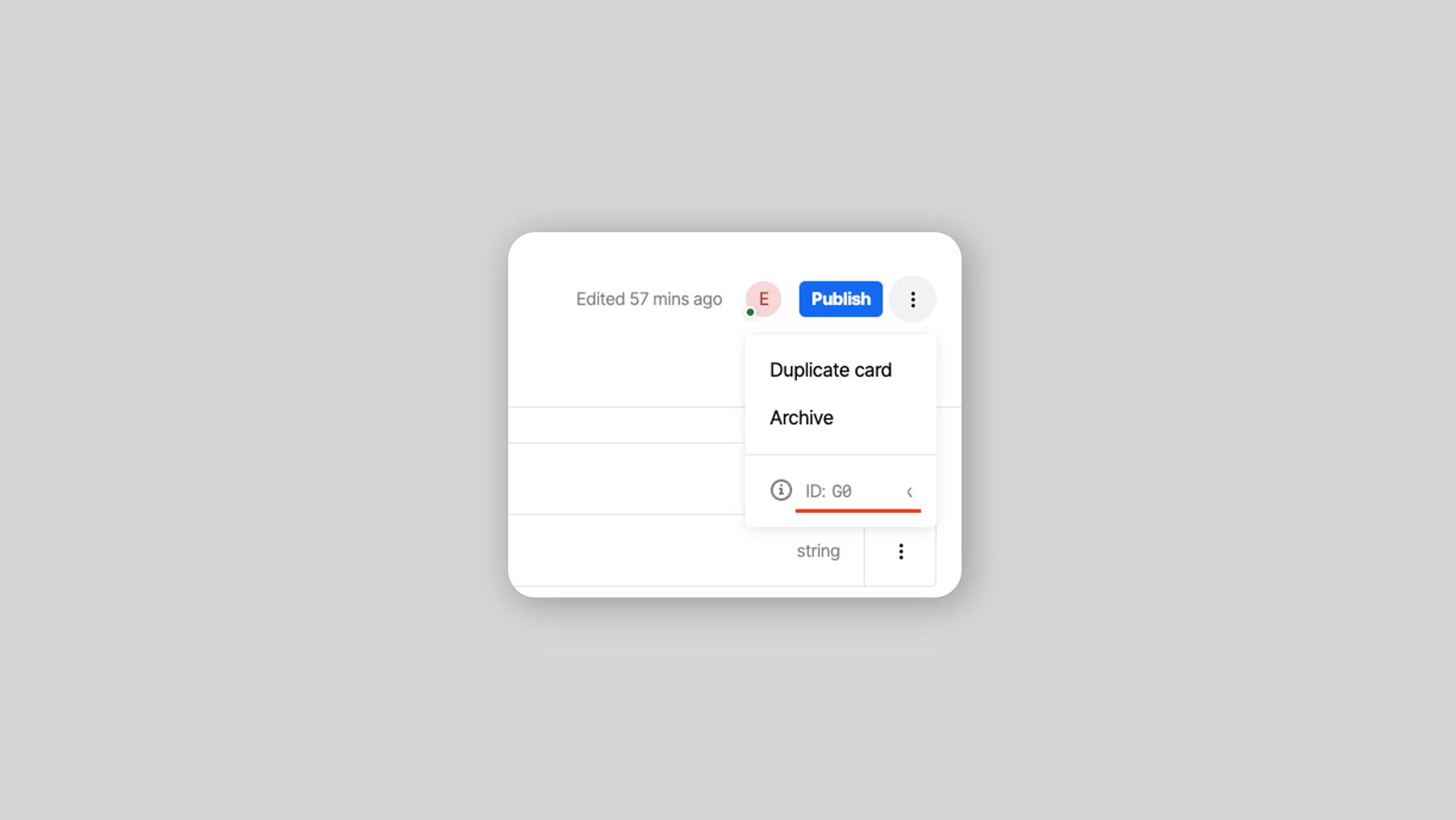
:::info How to get the card template ID On the card editing page, click on the ID part of the overflow menu at the upper-right corner.
:::info Filters that are currently broken in Android
The equalTo byVariableNameBool and between byCreatedDate filters are currently unavailable for Android.
:::
The operator is the operational logic applied to a filter value (some operators require 2 or more values).
The following table outlines available operators.
| Operator | Description | Supported types |
|---|---|---|
| equalTo | Equal to the filter value | int, DateTime, String, bool |
| notEqualTo | Not equal to the filter value | int, DateTime, String, bool |
| greaterThan | Greater than the filter value | int, DateTime |
| greaterThanOrEqualTo | Greater than or equal to the filter value | int, DateTime |
| lessThan | Less than the filter value | int, DateTime |
| lessThanOrEqualTo | Less than or equal to the filter value | int, DateTime |
| in | In one of the filter values | int, DateTime, String |
| notIn | Not in one of the filter values | int, DateTime, String |
| between | In the range of start and end, inclusive | int, DateTime |
After creating a filter value, use the corresponding static method on the AACCardListFilter class to combine it with an operator.
The following code snippet shows how to create a filter that filters card with priority between 2 and 6 inclusive.
final filterValue1 = AACCardFilterValue.byPriority(2);
final filterValue2 = AACCardFilterValue.byPriority(6);
final filter = AACCardFilter.between(filterValue1, filterValue2);
:::warning Passing correct value type to an operator
Each operator supports different type of values. For example, operator lessThan only support Int and Date. So passing String values to that operator will raise an exception.
:::
There are three steps to filter cards in a stream container or for a card count observer:
-
Create one or more
AACCardFilterValueobjects. -
Combine filter values with filter operators to form a
AACCardFilter. -
Apply filter(s).
3.1. In Flutter the stream containers object is hidden in the widget tree, so the best place to apply a filter would be in the
onViewLoadedcallback, where the container objectstateis provided.- To apply a single filter, call
await state.applyFilter(filter). - To apply multiple filters, call
await state.applyFilters(List<AACCardFilter>? filters). EachapplyFiltercall overrides the previous call (not incremental). So if you want to apply multiple filters at the same time, use theapplyFilters(List<AACCardFilter>? filters)method rather than multipleapplyFilter(filter)methods. - To delete all existing filters, pass either
nullor an empty list[]to theapplyFiltersmethod, ornullto theapplyFiltermethod.
import 'package:atomic_sdk_flutter/atomic_stream_container.dart';

AACStreamContainer(
  configuration: ...,
  containerId: '1234',
  onViewLoaded: (state) {
    AACCardFilter filter = AACCardFilter.byCardInstanceId('cardId1234');
    await state.applyFilter(filter);
    // or, for multiple filters: await state.applyFilters(List<AACCardFilter> filters);
    // or, to delete all filters: await state.applyFilters([]);
  },
),
3.2. For card count observers, pass a
Listof filters to parameterfilterswhen creating an observer using theAACSession.observeCardCountmethod. - To apply a single filter, call
The following code snippet shows how to only display cards with priority > 5 in a stream container.
...
onViewLoaded: (state) {
  final filterValue = AACCardFilterValue.byPriority(5)
  final filter = AACCardFilter.greaterThan(filterValue)

  // Acquire the stream container object and apply filter
  state.applyFilter(filter);
}The following code snippet shows how to only display cards created earlier than 9/Jan/2023 inclusive in a stream container.
...
onViewLoaded: (state) {
  final filterValue = AACCardFilterValue.byCreatedDate(DateTime(2023, 1, 9));
  final filter = AACCardFilter.lessThanOrEqualTo(filterValue);

  state.applyFilter(filter);
}The following code snippet shows how to only display cards with the template names 'card 1', 'card 2', or 'card 3' in a stream container.
...
onViewLoaded: (state) {
  final filterValue1 = AACCardFilterValue.byCardTemplateName("card1");
  final filterValue2 = AACCardFilterValue.byCardTemplateName("card2");
  final filterValue3 = AACCardFilterValue.byCardTemplateName("card3");
  final filter = AACCardFilter.contains([filterValue1, filterValue2, filterValue3]);

  state.applyFilter(filter);
}The following code snippet shows how to only display cards with priority != 6 and custom variable isSpecial == true in a stream container.
Note: isSpecial is a Boolean custom variable defined in Workbench.
...
onViewLoaded: (state) {
  final filterValue1 = AACCardFilterValue.byPriority(6);
  final filter1 = AACCardFilter.notEqualTo(filterValue1);

  final filterValue2 = AACCardFilterValue.byVariableNameBool("isSpecial", true);
  final filter2 = AACCardFilter.equalTo(filterValue2);

  state.applyFilters([filter1, filter2]);
}The legacy filter is still supported - AACCardFilter.byCardInstanceId(String cardInstanceId). This filter requests that the stream container or single card view show only a card matching the specified card instance ID, if it exists. An instance of this filter can be created using the corresponding static method on the AACCardFilter class.
The card instance ID can be found in the push notification payload, allowing you to apply the filter in response to a push notification being tapped.
...
onViewLoaded: (state) {
  final filter = AACCardFilter.byCardInstanceId("ABCD-1234");
  state.applyFilter(filter);
}
:::info Filters
The legacy filter AACCardFilter.byCardInstanceId for the observeStreamContainer method only works on iOS, not Android.
Also, the legacy filter doesn't work for observeCardCount on both platforms.
Nonetheless, it does work on both platforms for the applyFilters method.
:::
-
For stream containers, pass
nullor an empty list[]to theapplyFilters(List<AACCardFilter>? filters)method. -
For stream container observers,
filtersis an optional parameter (set tonullby default). The filters cannot be changed after creating the observer:
AACSession.observeStreamContainer(config: AACStreamContainerObserverConfiguration(filters: myFilters))In the Atomic Workbench, you can create a submit or link button with a custom action payload.
- When such a link button is tapped, the
didTapLinkButtonmethod is called on your action delegate. - When such a submit button is tapped, and after the card is successfully submitted, the
didTapSubmitButtonmethod is called on your action delegate.
The parameter to each of these methods is an action object, containing the payload that was defined in the Workbench for that button. You can use this payload to determine the action to take, within your app, when the submit or link button is tapped.
The action object also contains the card instance ID and stream container ID where the custom action was triggered.
import 'package:atomic_sdk_flutter/atomic_stream_container.dart';

// 1. Extend the action delegate.
class MyActionDelegate extends AACStreamContainerActionDelegate {
  @override
  void didTapActionButton() {
    print("The action button was tapped.");
  }

  @override
  void didTapLinkButton(AACCardCustomAction action) {
    print("The link button was clicked, card id: ${action.cardInstanceId}");
    print("The container id is ${action.containerId}");
    print("The action payload is ${action.actionPayload}");
  }

  @override
  void didTapSubmitButton(AACCardCustomAction action) {
    print("The submit button was clicked, card id: ${action.cardInstanceId}");
    print("The container id is ${action.containerId}");
    print("The action payload is ${action.actionPayload}");
  }
}

// 2. Assign an event delegate on instantiation.
...

AACStreamContainer(
configuration: <config>,
containerId: <container ID>,
actionDelegate: myActionDelegate,
)The Atomic SDKs provide the ability to snooze a card from a stream container or single card view. Snooze functionality is exposed through the card’s action buttons, overflow menu and the quick actions menu (exposed by swiping a card to the left, on iOS and Android).
Tapping on the snooze option from either location brings up the snooze date and time selection screen. The user selects a date and time in the future until which the card will be snoozed. Snoozing a card will result in the card disappearing from the user’s card list or single card view, and reappearing again at the selected date and time. A user can snooze a card more than once.
When a card comes out of a snoozed state, if the card has an associated push notification, and the user has push notifications enabled, the user will see another notification, where the title is prefixed with Snoozed:.
You can customize the title of the snooze functionality, as displayed in a card’s overflow menu and in the title of the card snooze screen. The default title, if none is specified, is Remind me.
On the AACStreamContainerConfiguration object, call the setValueForCustomString method to customize the title for the card snooze functionality:
configuration.setValueForCustomString(AACCustomString.cardSnoozeTitle, 'Snooze');The Atomic SDKs support card voting, which allows you to gauge user sentiment towards the cards you send. When integrating the SDKs, you can choose to enable options for customers to indicate whether a card was useful to the user or not, accessible when they tap on the overflow button in the top right of a card.
If the user indicates that the card was useful, a corresponding analytics event is sent for that card (card-voted-up).
If they indicate that the card was not useful, they are presented with a secondary screen where they can choose to provide further feedback. The available reasons for why a card wasn’t useful are:
- It’s not relevant;
- I see this too often;
- Something else.
If they select "Something else", a free-form input is presented, where the user can provide additional feedback. The free form input is limited to 280 characters. After tapping "Submit", an analytics event containing this feedback is sent (card-voted-down).
You can customize the titles that are displayed for these actions, as well as the title displayed on the secondary feedback screen. By default these are:
- Thumbs up - "This is useful";
- Thumbs down - "This isn’t useful";
- Secondary screen title - "Send feedback".
Card voting is disabled by default. You can enable positive card voting ("This is useful"), negative card voting ("This isn’t useful"), or both:
configuration.votingOption = AACVotingOption.both; // Enable both voting options
configuration.votingOption = AACVotingOption.useful; // Enable only voting-up option
configuration.votingOption = AACVotingOption.notUseful; // Enable only voting-down option
configuration.votingOption = AACVotingOption.none; // Enable no voting options (default)
You can also customize the titles for the card voting options, and the title displayed at the top of the feedback screen, presented when a user indicates the card wasn’t useful:
configuration.setValueForCustomString(AACCustomString.votingFeedbackTitle, 'Provide feedback');
configuration.setValueForCustomString(AACCustomString.votingUseful, 'Thumbs up');
configuration.setValueForCustomString(AACCustomString.votingNotUseful, 'Thumbs down');You can choose to manually refresh a stream container or single card view, such as when a push notification arrives while your app is open. Refreshing will result in the stream container or single card view checking for new cards immediately, and showing any that are available.
Note On Flutter the stream container is a stateful widget, whose view is actually controlled by its state class, so you need to call AACStreamContainerState.refresh.
streamContainerState.refresh();The SDK allows you to perform custom actions in response to events occurring on a card, such as when a user:
- submits a card;
- dismisses a card;
- snoozes a card;
- indicates a card is useful (when card voting is enabled);
- indicates a card is not useful (when card voting is enabled).
To be notified when these happen, assign a card event delegate to your stream container:
// 1. Extend the event delegate.
class MyEventDelegate extends AACCardEventDelegate {
  @override
  void didTriggerCardEvent(AACCardEvent event) {
    // Perform a custom action in response to the card event.
    print('The event ${event.kind.stringValue} happened in the stream container.');
  }
}

// 2. Assign an event delegate on instantiation.
...

AACStreamContainer(
    configuration: <config>,
    containerId: <container ID>,
    eventDelegate: myEventDelegate,
);To use push notifications in the Flutter SDK, you'll need to add your iOS push certificate and Android server key in the Workbench (see: Notifications), then request push notification permission in your app.
Push notification support requires a Flutter library such as flutter_apns.
Once this is integrated, you can configure push notifications via the Flutter SDK. The steps below can occur in either order in your app.
1. Register the user against specific stream containers for push notifications
You need to signal to the Atomic Platform which stream containers are eligible to receive push notifications in your app for the current device.
You will need to do this each time the logged in user changes.
There is an optional parameter notificationsEnabled which updates the user's notificationsEnabled preference in the Atomic Platform. You can also inspect and update this preference using the Atomic API - consult the API documentation for user preferences for more information.
If you pass false for this parameter, the user's notificationsEnabled preference will be set to false, which means that they will not receive notifications on any eligible devices, even if their device is registered in this step, and the device push token is passed to Atomic in the next step. If you pass true, the user's notificationEnabled preference will be set to true, which is the default, and allows the user to receive notifications. This allows you to explicitly enable or disable notifications for the current user, via UI in your own app - such as a notification settings screen.
import 'package:atomic_sdk_flutter/atomic_session.dart';

await AACSession.registerStreamContainersForNotifications(['<containerId>'],  /*Optional*/false);
To deregister the device for Atomic notifications for your app, such as when a user completely logs out of your app, call deregisterDeviceForNotifications on AACSession:
import 'package:atomic_sdk_flutter/atomic_session.dart';

await AACSession.deregisterDeviceForNotifications();
2. Send the push token to the Atomic Platform
Send the device's push token to the Atomic Platform when it changes. Call this method in the appropriate push notification callback in your app:
import "package:atomic_sdk_flutter/atomic_session.dart";

await AACSession.registerDeviceForNotifications('token');
You can call the registerDeviceForNotifications method any time you want to update the push token stored for the user in the Atomic Platform; pass the method the device token as a string, along with a session delegate.
You will also need to update this token every time the logged in user changes in your app, so the Atomic Platform knows who to send notifications to.
:::info Use user metrics
It is recommended that you use user metrics to retrieve the card count instead. See the next section for more information.
:::
The SDK supports observing the card count for a particular stream container. Card count is provided to your callback independently of whether a stream container or single card view has been created, and is updated at the provided interval.
Future<String> observeCardCount({
  required String containerId,
  required void Function(int cardCount) callback,
  Duration pollingInterval = const Duration(seconds: 1),
  List<AACCardFilter>? filters,
});
The pollingInterval must be at least 1 second, otherwise it defaults to 1 second. You can also optionally provide a list of AACCardFilters to the observer. The method returns a String observer token to distuingish card count observers.
:::info Filters
The legacy filter AACCardFilter.byCardInstanceId for observeCardCount does not work for both Android and iOS.
:::
If you choose to observe the card count, by default it is updated immediately after the published card number changes. If for some reason the WebSocket is not available, the count is then updated periodically at the interval you specify. The time interval cannot be smaller than 1 second.
When you want to stop observing the card count, you can remove the observer using the token returned from the observation call:
await AACSession.stopObservingCardCount(observerToken);import 'package:atomic_sdk_flutter/atomic_session.dart';
// Retain this token so that you can stop observing later.
String observerToken = await AACSession.observeCardCount(
containerId: '<containerId>',
pollingInterval: 5,
callback: (count) {
print("Card count is now ${count}");
},
// This filter will make the callback only give the count of cards with a priority of 3.
filters: [AACCardFilter.equalTo(AACCardFilterValue.byPriority(3))],
});
// Stop observing for that token
await AACSession.stopObservingCardCount(observerToken);:::info What is an active card? What is an unseen card?
All cards are unseen the moment they are sent. A card becomes "seen" when it has been shown on the customer's screen (even if only briefly or partly). A quick scroll-through might not make the card "seen", this depends on the scrolling speed. The user metrics only count "active" cards, which means that snoozed and embargoed cards will not be included in the count.
:::
The Atomic iOS SDK exposes a new object: user metrics. These metrics include:
- The number of cards available to the user across all stream containers;
- The number of cards that haven't been seen across all stream containers;
- The number of cards available to the user in a specific stream container (equivalent to the card count functionality in the previous section);
- The number of cards not yet seen by the user in a specific stream container.
These metrics enable you to display badges in your UI that indicate how many cards are available to the user but not yet viewed, or the total number of cards available to the user.
import 'package:atomic_sdk_flutter/atomic_session.dart';
// User metrics across all stream containers.
AACSession.userMetrics('').then((metrics) {
  print('Total cards across all containers: ${metrics.totalCards}');
  print('Unseen cards across all containers: ${metrics.unseenCards}');
});

// User metrics of a specific stream container.
AACSession.userMetrics('container-1234').then((metrics) {
  print("Total cards across a specific container: ${metrics.totalCards}");
  print("Unseen cards across a specific container:${metrics.unseenCards}");
});
Runtime variables are resolved in the SDK at runtime, rather than from an event payload when the card is assembled. Runtime variables are defined in the Atomic Workbench.
The SDK will ask the host app to resolve runtime variables when a list of cards is loaded (and at least one card has a runtime variable), or when new cards become available due to WebSockets pushing or HTTP polling (and at least one card has a runtime variable).
Runtime variables are resolved by your app via the requestRuntimeVariables method on AACRuntimeVariableDelegate. If you do not implement this method, runtime variables will fall back to their default values, as defined in the Atomic Workbench. To resolve runtime variables, you pass an object extending AACRuntimeVariableDelegate to the parameter runtimeVariableDelegate when creating a stream container or a single card view.
:::info Only string values
Runtime variables can currently only be resolved to string values.
:::
The requestRuntimeVariables method, when called by the SDK, provides you with:
- A list of objects representing the cards in the list. Each card object contains:
- The lifecycle identifier associated with the card;
- A method that you call to resolve each variable on that card (
-resolveRuntimeVariableWithName:value:). - A list of all runtime variables in use by this card.
The method expects a nullable list of resolved cards returned, once all variables are resolved.
If a variable is not resolved, that variable will use its default value, as defined in the Atomic Workbench.
If you do not return the card list before the runtimeVariableResolutionTimeout elapses (defined on AACStreamContainerConfiguration), the default values for all runtime variables will be used.
import 'package:atomic_sdk_flutter/atomic_card_runtime_variable.dart';

class MyCardRuntimeVariableDelegate extends AACRuntimeVariableDelegate {

  @override
  Future<List<AACCardInstance>> requestRuntimeVariables(List<AACCardInstance> cardInstances) {
    for (AACCardInstance card in cardInstances) {
        // Resolve a runtime variable 'numberOfItems' to '12' on all cards.
        // You can also inspect `lifecycleId` and `cardInstanceId` to determine what type of card this is.
      card.resolveRuntimeVariable("numberOfItems", '12');
    }
    return Future.value(cardInstances);
  }
}You can manually update runtime variables at any time by calling the updateVariables method on AACStreamContainerState or AACSingleCardViewState:
streamState.updateVariables();The Atomic SDKs support a variety of accessibility features on each platform. These features make it easier for vision-impaired customers to use Atomic's SDKs inside of your app.
These features also allow your app, with Atomic integrated, to continue to fulfil your wider accessibility requirements.
The Atomic Flutter SDK supports dynamic font scaling. Font scaling behave differently on platforms. On iOS this feature is called Dynamic Type. On Android, this feature is enabled in the Settings app, under "Font size".
For more details on dynamic font scaling, see the iOS Dynamic Type or Android Dynamic font scaling documentation.
When creating your stream container's theme in the Atomic Workbench, you optionally define custom fonts that can be used by the stream container for UI elements. When defined in the Workbench, these fonts must point to a remote URL, so that the SDK can download the font, register it against the system and use it.
It is likely that the custom fonts you wish to use are already part of your app, particularly if they are a critical component of your brand identity. If this is the case, you can have a stream container font - with a given font family name, weight and style - reference a font embedded in your app instead. This is also useful if the license for your font only permits you to embed the font and not download it from a remote URL.
To map a font in a stream container theme to one embedded in your app, first add the font file to the project - make sure you also declare the font in the pubspec file. Then use the registerEmbeddedFonts: method on AACSession, passing an array of AACEmbeddedFont objects, each containing the following:
- A
familyNamethat matches the font family name declared in the Atomic Workbench; - A
weight- a value ofAACFontWeight, also matching the value declared in the Atomic Workbench; - A
style- either italic or regular; - A
postscriptName, which matches the Postscript name of a font available to your app. This can be a font bundled with your application or one provided by the operating system.
If the familyName, weight and style of a font in the stream container theme matches an AACEmbeddedFont instance that you've registered with the SDK, the SDK will use the postscriptName to create an instance of your embedded font, and will not download the font from a remote URL.
In the example below, any use of a custom font named BrandFont in your theme, that is bold and italicized, would use the embedded font named HelveticaNeue instead:
:::info Invalid Postscript names
If the Postscript name provided is invalid, or the family name, weight and style do not match a custom font in the stream container theme exactly, the SDK will download the font at the remote URL specified in the theme instead.
:::
import 'package:atomic_sdk_flutter/atomic_embedded_font.dart';
import 'package:atomic_sdk_flutter/atomic_session.dart';

final embeddedFont =
    AACEmbeddedFont("BrandFont", "HelveticaNeue", AACFontStyle.italic, AACFontWeight.regular);
AACSession.registerEmbeddedFonts([embeddedFont]);:::info Default behavior
The default behavior is to not send analytics for resolved runtime variables. Therefore, you must explicitly enable this feature to use it.
:::
If you use runtime variables on a card, you can optionally choose to send the resolved values of any runtime variables back to the Atomic Platform as an analytics event. This per-card analytics event - runtime-vars-updated - contains the values of runtime variables rendered in the card and seen by the end user. Therefore, you should not enable this feature if your runtime variables contain sensitive data that you do not wish to store on the Atomic Platform.
To enable this feature, set the runtimeVariableAnalytics flag on your configuration's features object:
import 'package:atomic_sdk_flutter/atomic_stream_container.dart';

final config = AACStreamContainerConfiguration();
config.features = AACFeatureFlags()..runtimeVariableAnalytics = true;Debug logging allows you to view more verbose logs regarding events that happen in the SDK. It is turned off by default, and should not be enabled in release builds. To enable debug logging:
import 'package:atomic_sdk_flutter/atomic_session.dart';

await AACSession.enableDebugMode(level);
The parameter level is an integer that indicates the verbosity level of the logs exposed:
- Level 0: Default, no logs exposed.
- Level 1: Operations and transactions are exposed.
- Level 2: Operations, transactions and their details are exposed, plus level 1.
- Level 3: Expose all logs.
The SDK provides a method for purging the local cache of a user's card data. This method intends to clear user data when a previous user logs out, so that the cache is clear when a new user logs in to your app. This method also sends any pending analytics events back to the Atomic Platform.
To clear this in-memory cache, call:
import 'package:atomic_sdk_flutter/atomic_session.dart';

await AACSession.logout();

// Or in a way that installs callbacks (iOS only).

AACSession.logout().then((value) {
    // Codes that execute after successfully logging out.
}).onError((error, stackTrace) {
  // Handle the error.
});
The SDK allows you to update the user profile and preferences on the Atomic Platform for the logged-in user via the updateUser method of AACSession. This user is identified by the authentication token provided by the session delegate that is registered when initiating the SDK.
For simple setup, create an AACUserSettings object and set some profile fields, then call method AACSession.updateUser(userSettings).
The following optional profile fields can be supplied to update the data for the user. A user setting object is equivalent to those settings in the Customers page on the Workbench.
external_id: An optional string that represents an external identifier for the user.name: An optional string that represents the name of the user.email: An optional string that represents the email address of the user.phone: An optional string that represents the phone number of the user.city: An optional string that represents the city of the user.country: An optional string that represents the country of the user.region: An optional string that represents the region of the user.
Any fields which have not been supplied will remain unmodified after the user update.
The following code snippet shows how to set up some profile fields:
final userSettings = AACUserSettings()
                      ..externalID = 'Flutter shell app ID'
                      ..name = 'Flutter user'
                      ..email = '[email protected]'
                      ..phone = '+(64)123456'
                      ..city = 'Flutter city'
                      ..country = 'Flutter country'
                      ..region = 'Flutter region';
await AACSession.updateUser(userSettings);You can also setup your custom fields of the user profile. Custom fields must first be created in Atomic Workbench before updating them. For more details of custom fields, see Custom Fields.
There are two types of custom fields: date and text.
userSettings.setDateForCustomField(DateTime dateTime, String customField)for custom fields defined as type 'date' in the Atomic Workbench.userSettings.setTextForCustomField(String text, String customField)for custom fields defined as type 'text' in the Atomic Workbench.
Note: Use the name property in the Workbench to identify a custom field, not the label property.
The following code snippet shows how to set up a date and a text field:
AACUserSettings()
  ..setTextForCustomField("Flutter!!", "fluttertext");
..setDateForCustomField(DateTime.now(), "flutterdate");You can use the following optional property and method to update the notification preferences for the user. Again, any fields which have not been supplied will remain unmodified after the user update.
setNotificationTime(List<AACUserNotificationTimeframe> timeframes, AACUserNotificationTimeframeWeekdays weekday): An optional method that defines the notification time preferences of the user for different days of the week. If you specifyNotificationDays.anyDayto the second parameter, the notification time preferences will be applied to every day.
Each day accepts an list of notification time periods, these are periods during which notifications are allowed. If an empty array is provided notifications will be disabled for that day.
The following code snippet shows how to set up notification periods between 8am - 5:30pm & 7pm - 10pm on Monday:
AACUserSettings().setNotificationTime(
  [
    AACUserNotificationTimeframe(
      startHour: 8,
      startMinute: 0,
      endHour: 17,
      endMinute: 30,
    ),
    AACUserNotificationTimeframe(
      startHour: 19,
      startMinute: 0,
      endHour: 22,
      endMinute: 0,
    ),
  ],
  AACUserNotificationTimeframeWeekdays.monday,
);
Hours are in the 24h format that must be between 0 & 23 inclusive, while minutes are values between 0 & 59 inclusive.
The following code snippet shows an example of using the updateUser method to update profile fields, custom profile fields and notification preferences.
final userSettings = AACUserSettings()
  ..externalID = 'Flutter shell app ID'
  ..name = 'Flutter user'
  ..email = '[email protected]'
  ..phone = '+(64)123456'
  ..city = 'Flutter city'
  ..country = 'Flutter country'
  ..region = 'Flutter region'
  ..setTextForCustomField("Flutter!!", "fluttertext")
  ..setDateForCustomField(DateTime.now(), "flutterdate")
  ..setNotificationTime(
    [
      AACUserNotificationTimeframe(
        startHour: 0,
        startMinute: 0,
        endHour: 18,
        endMinute: 59,
      ),
      AACUserNotificationTimeframe(
        startHour: 19,
        startMinute: 0,
        endHour: 23,
        endMinute: 59,
      ),
    ],
    AACUserNotificationTimeframeWeekdays.anyDay,
  );
await AACSession.updateUser(userSettings);
:::info Optional values
Though all fields of AACUserSettings are optional, you must supply at least one field when calling AACSDK.updateUser.
:::
The Atomic Flutter SDK provides functionality to observe SDK events that symbolize identifiable SDK activities such as card feed changes or user interactions with cards. The following code snippet shows how to observe SDK events.
AACSession.setSDKEventObserver((AACSDKEvent sdkEvent) {
  // do something with the sdkEvent
});
:::info
Only one SDK event observer can be active at a time. If you call this method again, it will replace the previous observer. To remove the SDK event observer, set it to null.
:::
The SDK provides all observed events in the base class AACSDKEvent. Each event shares common information such as an eventName, timestamp, indentifier, and where appropriate, userId and containerId.
An event has a corresponding eventType property taken from the AACSDKEventType enum. The properties for each event is different and dependant on the eventType, but they closely follow Atomic analytics events. The properties that are not applicable to the event's eventType are set to null. For detailed information about these events, please refer to Analytics reference.
| AACSDKEventType | Analytics | Description |
|---|---|---|
Dismissed |
YES | The user dismisses a card. |
Snoozed |
YES | The user snoozes a card. |
Submitted |
YES | The user submits a card. |
CardFeedUpdated |
NO | A card feed has been updated. It occurs when a card(s) has been removed or added to the feed, or the card(s) in the feed has been updated. |
CardDisplayed |
YES | A card is displayed in a container. This event monitors the following situations: - User scrolling (tracked once scrolling settles). - Initial load of the card list. - Arrival of new cards that is visible. |
CardVotedUp |
YES | The user taps on the "this is useful" option in the card overflow menu. |
CardVotedDown |
YES | The user taps the "Submit" button on the card feedback screen, which is brought up by tapping on the "This isn't useful" option in the card overflow menu. |
RuntimeVarsUpdated |
YES | A card containing runtime variables has one or more runtime variables resolved. This event occurs on a per-card basis. |
StreamDisplayed |
YES | A stream container is first loaded or returned to. |
UserRedirected |
YES | The user is redirected by a URL or a custom payload. This happens if they open a URL on a link button, open a URL after submitting a card, or tap on a link or submit button with a custom action payload. This event can occur on either the top-level or subview of a card. |
SnoozeOptionsDisplayed |
YES | The snooze date/time selection UI is displayed. |
SnoozeOptionsCanceled |
YES | The user taps the "Cancel" button in the snooze UI. |
CardSubviewDisplayed |
YES | A subview of card is opened. |
CardSubviewExited |
YES | The user leaves the subview, either by navigating back or submitting the card. |
VideoPlayed |
YES | The user hits the play button of a video. This event can occur on either the top-level or subview of a card. |
VideoCompleted |
YES | A video finishes playing. This event can occur on either the top-level or subview of a card. |
SdkInitialized |
YES | An instance of the SDK is initialized, or the JWT is refreshed. |
RequestFailed |
YES | Any API request to the Atomic client API fails within the SDK, or a failure in WebSocket causes a fallback to HTTP polling. Note: Network failure and request timeout does not trigger this event. |
NotificationRecieved |
YES | A push notification is received by the SDK. |
void logSdkEventsCallback(AACSDKEvent sdkEvent) {
      "${_getTimeMsg(sdkEvent.timestamp)}\neventType.name: ${sdkEvent.eventType.name},"
      "\nidentifier: ${sdkEvent.identifier},\nuserId: ${sdkEvent.userId},\ncardCount: ${sdkEvent.cardCount},"
      "\ncardContext: ${sdkEvent.cardContext == null ? "null" : "{"
          "${newLineTab}cardInstanceId: ${sdkEvent.cardContext!.cardInstanceId},"
          "${newLineTab}cardInstanceStatus: ${sdkEvent.cardContext!.cardInstanceStatus},"
          "${newLineTab}cardPresentation: ${sdkEvent.cardContext!.cardPresentation},"
          "${newLineTab}cardViewState.name: ${sdkEvent.cardContext!.cardViewState?.name}\n}"},"
      "\nproperties: ${sdkEvent.properties == null ? "null" : "{"
          "${newLineTab}subviewId: ${sdkEvent.properties!.subviewId},"
          "${newLineTab}subviewTitle: ${sdkEvent.properties!.subviewTitle},"
          "${newLineTab}subviewLevel: ${sdkEvent.properties!.subviewLevel},"
          "${newLineTab}linkMethod.name: ${sdkEvent.properties!.linkMethod?.name},"
          "${newLineTab}url: ${sdkEvent.properties!.url},"
          "${newLineTab}submittedValues: ${sdkEvent.properties!.submittedValues},"
          "${newLineTab}redirectPayload: ${sdkEvent.properties!.redirectPayload},"
          "${newLineTab}resolvedVariables: ${sdkEvent.properties!.resolvedVariables},"
          "${newLineTab}reason.name: ${sdkEvent.properties!.reason?.name},"
          "${newLineTab}message: ${sdkEvent.properties!.message},"
          "${newLineTab}source: ${sdkEvent.properties!.source},"
          "${newLineTab}path: ${sdkEvent.properties!.path},"
          "${newLineTab}unsnoozeDate: ${sdkEvent.properties!.unsnoozeDate?.toIso8601String()},"
          "${newLineTab}statusCode: ${sdkEvent.properties!.statusCode}\n}"},"
      "\ncontainerId: ${sdkEvent.containerId},\nstreamContext: ${sdkEvent.streamContext == null ? "null" : "{"
          "${newLineTab}streamLength: ${sdkEvent.streamContext!.streamLength},"
          "${newLineTab}cardPositionInStream: ${sdkEvent.streamContext!.cardPositionInStream},"
          "${newLineTab}streamLengthVisible: ${sdkEvent.streamContext!.streamLengthVisible},"
          "${newLineTab}displayMode.name: ${sdkEvent.streamContext!.displayMode?.name}\n}"}";
  _allEvents.add(eventString);
}

// Start observing sdk events
AACSession.setSDKEventObserver(logSdkEventsCallback);

// Stop observing sdk events
AACSession.setSDKEventObserver(null);
Example output for the CardDisplayed event, using the above callback:
[2024-01-30 08:07:00.000Z]
eventType.name: CardDisplayed,
identifier: <identifier will be here>,
userId: <userId will be here>,
cardCount: null,
cardContext: {
  cardInstanceId: <cardInstanceId will be here>,
  cardInstanceStatus: active,
  cardPresentation: individual,
  cardViewState.name: TopView
},
properties: null,
containerId: 123ID,
streamContext: {
  streamLength: 12,
  cardPositionInStream: 1,
  streamLengthVisible: 1,
  displayMode.name: Single
}
When your application will display the number of unseen cards on the app icon, it is crucial to ensure that this number stays current as the user navigates through cards. This way, when they return to the home screen, they see an up to date count of unseen cards. To make this possible, we must fetch the count of unseen cards in real time.
You can obtain the count of unseen cards from user metrics. However, since this is a singular call, we need to invoke this method repeatedly to keep the count current. By monitoring SDK events, we can update the unseen card count every time a card's viewed status changes. The code snippet below shows how to fetch the number of unseen cards for a container under these conditions.
AACSession.setSDKEventObserver((AACSDKEvent sdkEvent) {
  if (sdkEvent.eventType == AACSDKEventType.CardFeedUpdated || sdkEvent.eventType == AACSDKEventType.CardDisplayed) {
    final containerId = "<containerId>";
    if (sdkEvent.containerId == containerId) {
      AACSession.userMetrics(sdkEvent.containerId).then((metrics) {
        print("Total cards across a specific container: ${metrics.totalCards}");
        print("Unseen cards across a specific container:${metrics.unseenCards}");
      });
    }
  }
});The following code snippet shows how to capture an event when the user votes down for a card.
AACSession.setSDKEventObserver((AACSDKEvent sdkEvent) {
  if (sdkEvent.eventType == AACSDKEventType.CardVotedDown) {
    print("The user has voted down for the card ${sdkEvent.cardContext.cardInstanceId}")
    switch (sdkEvent.properties.reason) {
      case AACSDKEventReason.TooOften:
        print("The reason is it's displayed too often.");
      case AACSDKEventReason.Relevant:
        print("The reason is it's not relevant.");
      case: AACSDKEventReason.other:
        print("The user provided some other reasons: ${sdkEvent.properties.message}");
    }
  }
});