The Dynamic Record Action LWC was inspired by a component that i've levered several times in the past called The Record Detail Component.
- Create a quick, admin confurable way to edit or view data on a lightning record page that is object agnostic.
- Give admins control of core functions not available with standard quick actions such as (form density, set fields quickly to read only or read write, set custom titles, control custom toast messaging service)
- Allow for Admins to enter a commma separated list of API names into a property and parse those values into an ordered list to be displayed on the quick action.
Because this component leverages the Lightning-Record-Form component it has the same limitations: https://developer.salesforce.com/docs/component-library/bundle/lightning-record-form/documentation
-
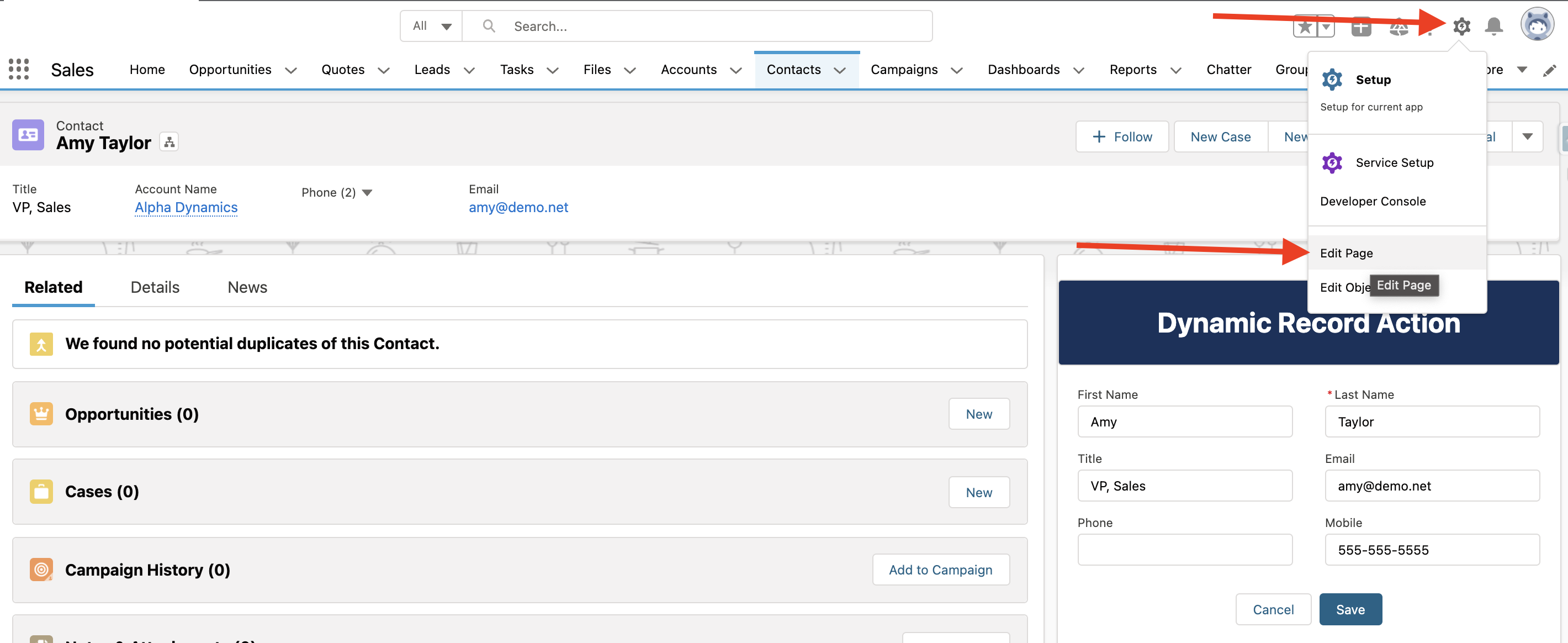
Go to your desired lightning record page and edit the page (note, you do not have to do this from the front end, you can navigate to your desired lightning page from the object manager as well):
-
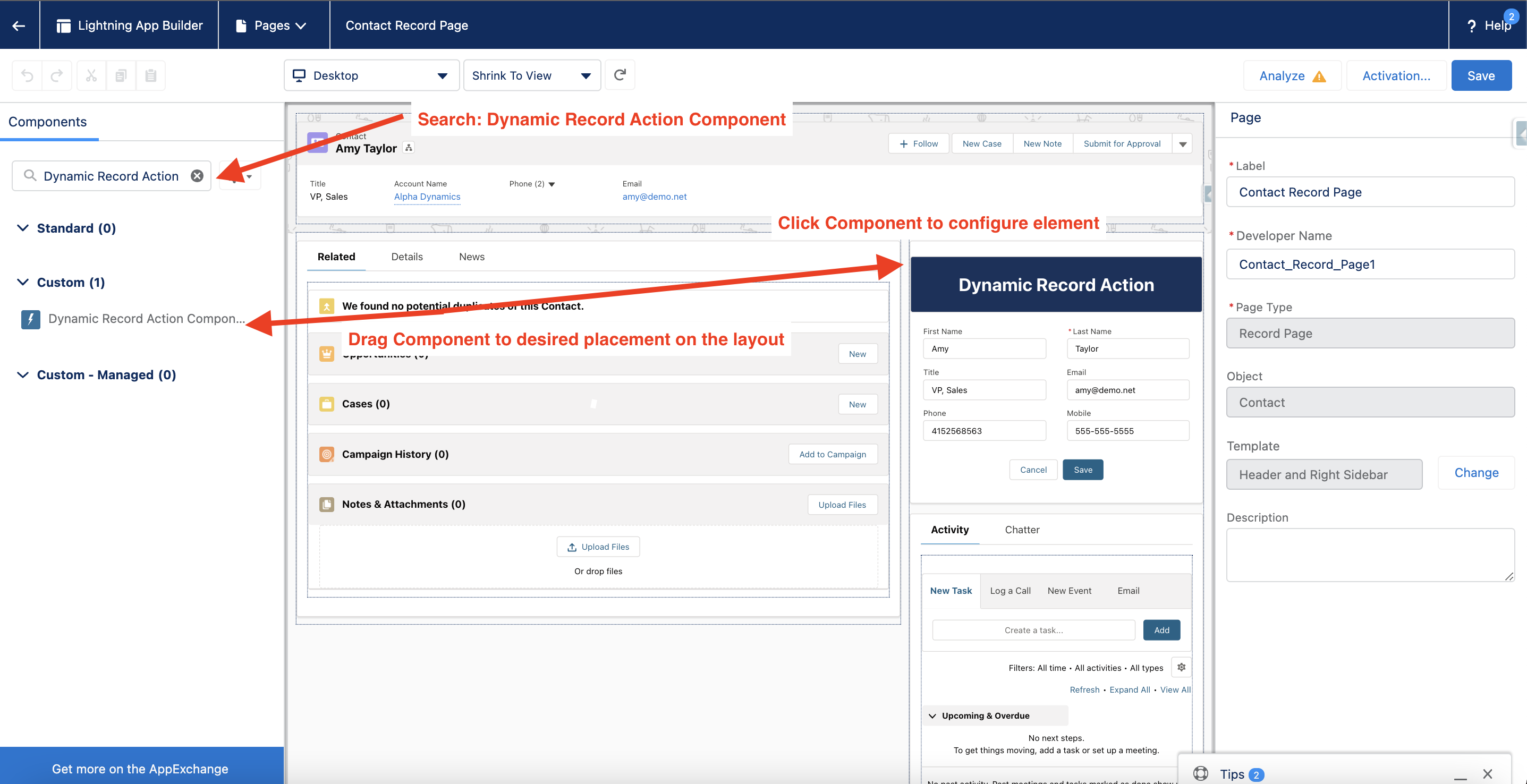
Once your lightning app builder screen has loaded search for 'Dynamic Record Action Component' on the far left search bar and drag result to the area of your choice on the application screen.
-
Once you have this loaded, fill out your desired inputs and select save on the top right!
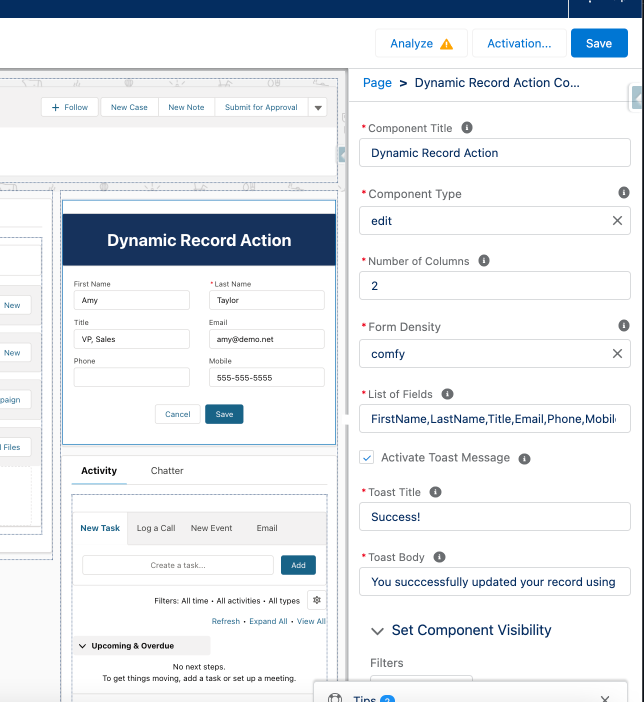
Input Descriptions Component Title - Title that displays at the header of your component. Example on screen is Dynamic Record Action Component Type - readonly / Edit - if you select readonly your fields will show in read only mode and your users will not be able to edit these fields. If you select edit, your users can edit these fields. Form Density - Comfy, Compact, Auto:
- Comfy:
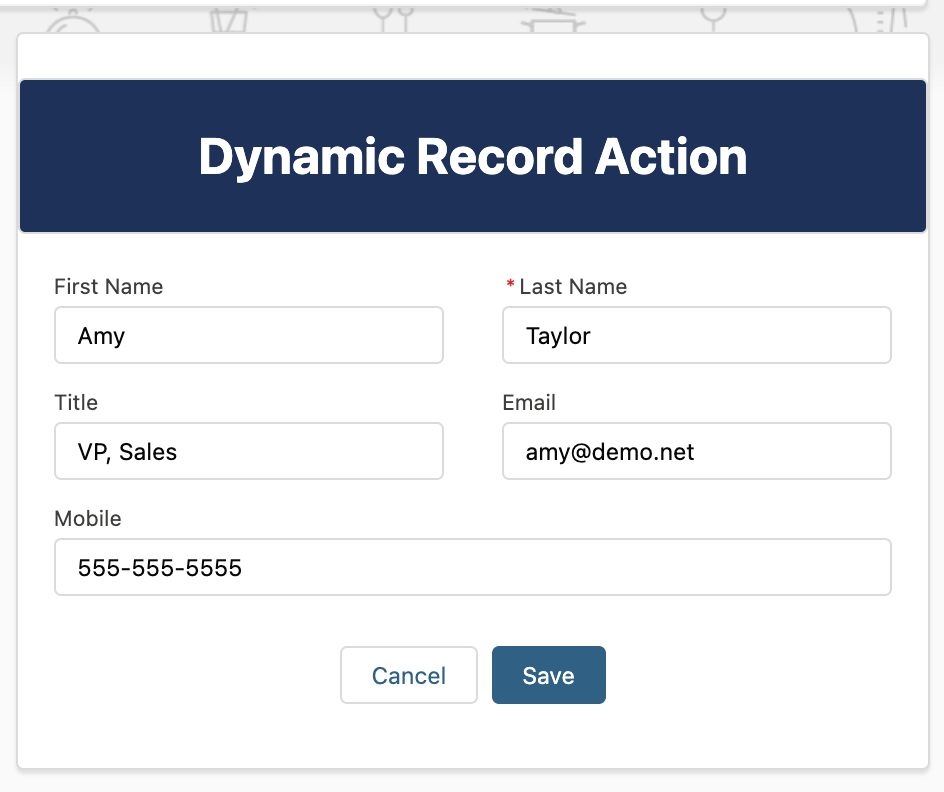
- Compact:
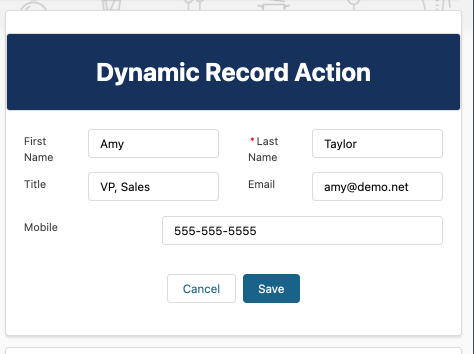
- Auto: Follows your users default system settings found in their user menu drop down.
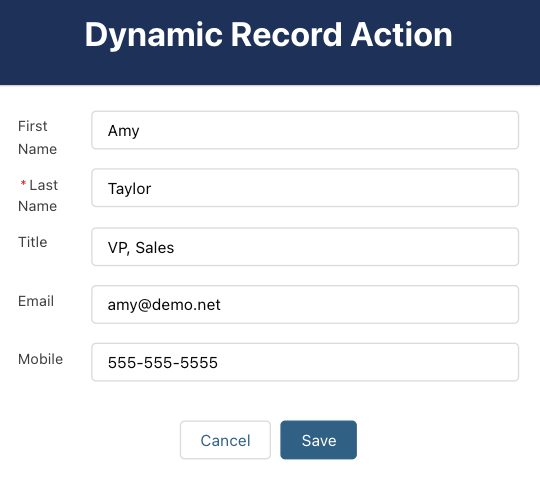
Number of Columns - Only acceptable choices are 1 and 2. This determines how many columns display in your form. The examples above are 2 column forms.
One Column Example:
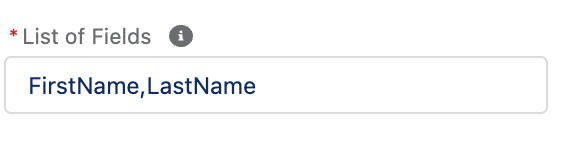
List of Fields - Commma separated list of field API names of the object you are display this component on. For example, on Contact if you want First Name and Last Name you would enter 'FirstName,LastName' like below:
Activate Toast Message - Activates the Toast Experience when your users successfully update a record. Toast Title - Enter the Toast title (or header) message you want displayed when your users submit a record. Toast Body - Enter the Toast body message you want displayed when your users submit a record.
- Complete!
