- Build a Microsoft Teams clone.
Note : Chat can only be used by the users Meghag5, prachi12, penguin and password 123123.
Note : My website is fully responsive for all screen sizes.
- Server Enviornment - NodeJS
- Frontend - ReactJS, HTML, CSS, Javascript
- SMS sending - chatengine.io
- Video calling - daily.co
- Deployment - Netlify
- First, fork this repository 🍴 and follow the given instructions:
# clone the repository to your local machine
$ git clone `git clone https://github.com/<YOUR-GITHUB-USERNAME>/Microsoft-cloning.git`

# navigate to the project's directory and install all the relevant dev-dependencies
$ cd Microsoft-cloning && npm intsall

# Start application
$ npm start
- Login
- Signin Form
- Homepage
- I have added easy to comprehend icons on the homepage.
- Video
- AppsNav
- Activity
- Chat
- Assignment
- Calendar
- Files
- Apps
- Help
- Click on sign up page to register yourself to navigate to login page.
- If want to download teams app click on Download Now.
- Enter any username.
- Enter any password.
- Click on SIGN IN to navigate to homepage.
- Enter username - Meghag5, prachi12, penguin
- Enter password - 123123 for all username .
- Click on Start Chatting to navigate to chat page.
This chat feature helps us to add as many people we want.
- Plus icon on top left is to create a new group.
- We can share text and images and can also download the images.
- If we are the creater of the group then on the right inside the options we have Delete option to delete the group.
- We can also add people in the group by clicking on people option on the right side list of people will be shown.
- We can also see all the photos that we have sent in the chat group by clicking on photos option on the right side.
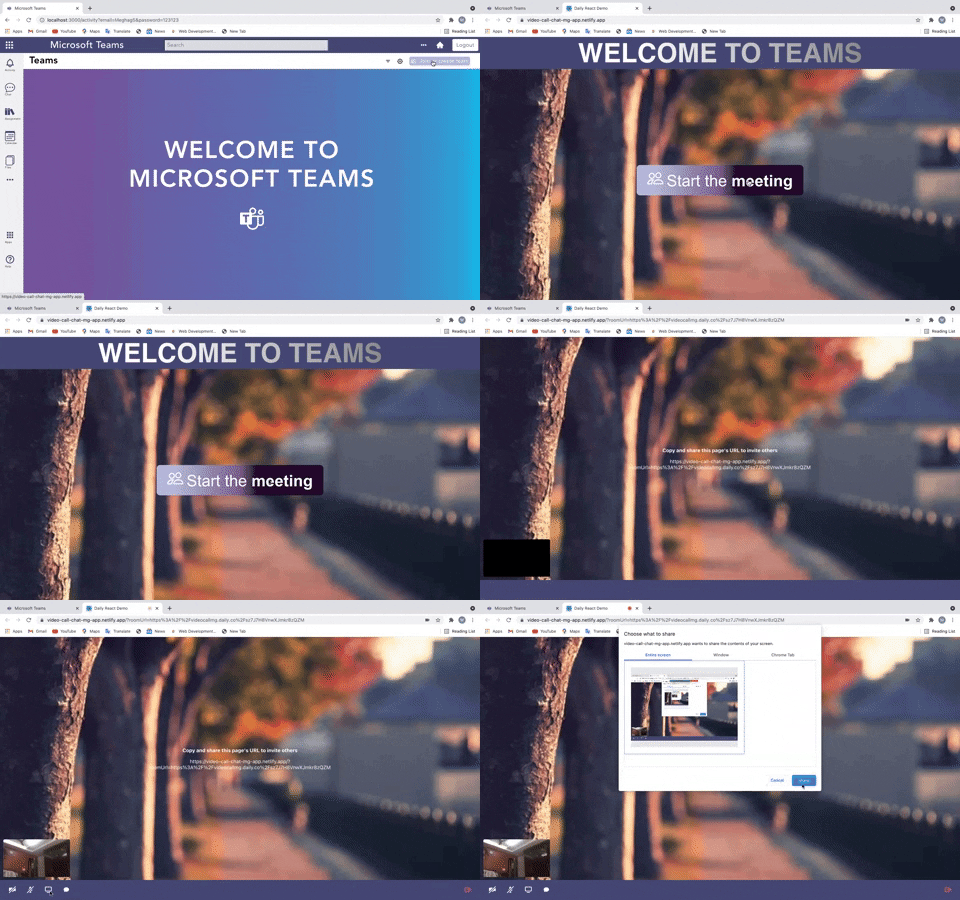
This video feature helps us to add as many people we want.
- By clicking on Join or create team on top-left corner we can start the video call.
- Then click on Start the meeting for starting video.
- A link will be displayes that we can shared with others for vodeo chatting.
- In the video control panel there is video on/off button, mute/unmute option, sharing screen, chat and exit option.
- Organize online classes and meeting.
- Able to send and receive messages.
- Able to download and send images from the chat.
- Able to access calendar.
- Able to make groups and delete groups.
- Able to add people in the group.
- Add a Create Team option and able to add users to it.
- Connect this project with the database so that only authorized Microsoft Teams user can sign in.
- Option to remove or allow a user in the meeting.
- Able to see messages before and after video call that are sent during the video call.
